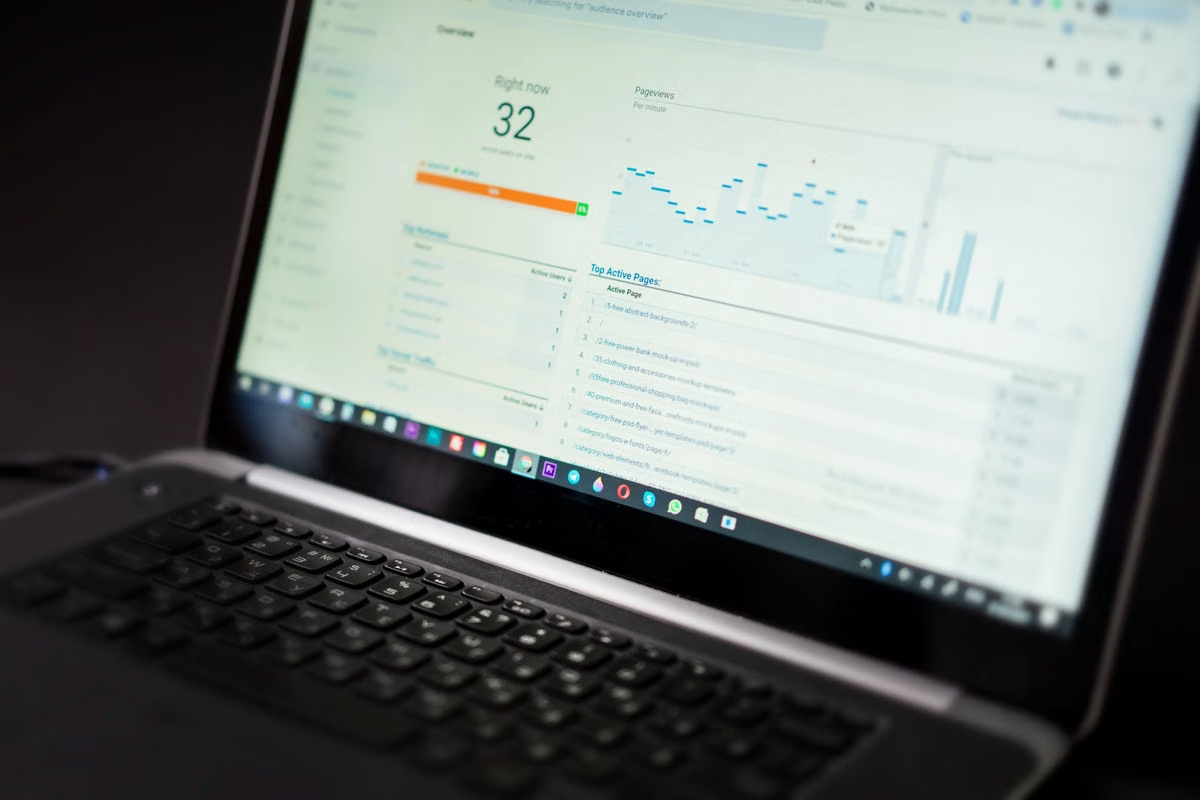
Shopify documents two separate views for this review: Agentic Storefronts performance reporting and an individual order’s conversion summary. Start with the channel report to assess sales, orders, visits, and conversion for the selected period; then inspect the order summary for the source details Shopify makes available. These views answer different questions, so don’t treat a missing path detail as proof that an order did not come from an AI channel. (Shopify’s Agentic Storefronts analytics guidance; Shopify’s order conversion summary guide)
Who this is for: Shopify sellers checking whether an AI channel is associated with visits or orders; store operators reviewing an order’s available source and referral details; and business leads setting a consistent reporting method for Agentic Storefronts.
Last updated November 5, 2026. The reporting guidance was checked against Shopify’s official Agentic Storefronts, report, and order conversion summary documentation. Shopify can change report names, filters, and admin interfaces, so confirm the current labels in your own store before comparing results.
Shopify Agentic Storefronts order attribution: report versus order summary
The channel report gives you an aggregate view for a selected scope. An order’s conversion summary gives you available details for that specific purchase. Use the report to review channel-level patterns, and the order summary to investigate one order. Neither view should be used as a substitute for the other.
| View | What it helps you check | What it does not establish by itself | Best use |
|---|---|---|---|
| Agentic Storefronts performance report | The sales, order, visit, and conversion information displayed for the selected channel and period | A complete customer journey for every order, or why a metric changed | Channel-level review and period-to-period comparisons |
| Individual order conversion summary | Source, referral, or other conversion details visible for that order | That every prior visit or touchpoint has been captured | Checking the information Shopify associates with a particular order |
| Other acquisition or marketing reports | The acquisition or marketing dimensions provided by those reports | That report definitions and scopes match the Agentic Storefronts report | Supporting analysis when the question concerns traffic or marketing activity |
The Agentic Storefronts help page describes the reporting view for the channel. Shopify’s sales reporting is a separate reporting context. Treat the two surfaces as related but not interchangeable: an aggregate sales view is not a record of every step taken by an individual customer.
A useful working conclusion has three levels:
- Channel activity is reported: the channel report shows data for the selected scope.
- An order source is identifiable: the individual order shows relevant source or referral information.
- A full journey is visible: the available records expose enough linked steps to describe the customer’s path.
The first conclusion does not automatically prove the second, and neither guarantees the third. Record only the level supported by the displayed data.
Sales and order metrics: totals versus individual purchases
Where to find Shopify Agentic Storefronts sales and order data
Open the Shopify admin and locate the current Agentic Storefronts reporting area. Check the report’s name and the filters shown in your store rather than relying on an old screenshot or an assumed menu path. Shopify’s sales report documentation explains the separate sales-report context, but it does not guarantee that every store or report view will expose identical labels and controls.
For a channel review, note the selected period and channel before interpreting the totals. A sales figure for a period is an aggregate under that report’s definitions. It is not a receipt for a particular order, nor does it provide a complete sequence of a customer’s visits. If you need to confirm one purchase, move to that order’s detail page and review its conversion summary separately.
Sales components also need careful handling. Discounts, returns, shipping, taxes, and other displayed components may affect how a total is presented in a sales report. Use the definitions supplied with the report and compare the same measure across the periods under review. Do not compare one report’s total sales with another report’s net sales and call the difference a channel change.
A practical scenario: an operator sees sales and orders in the Agentic Storefronts report for a chosen period, then opens a specific order and finds only limited source information. The supported statement is that the channel report contains aggregate activity while the order view contains only the details it displays. It would be an overreach to claim that the order definitely followed a particular path—or that it definitely did not—without evidence in the order record.
Visit and conversion measures: context before conclusions
Read visits and conversion measures together, not as isolated verdicts. A change in visits alone does not show whether those visits led to purchases. A change in conversion alone may also be hard to interpret unless you know the metric’s definition, denominator, selected time range, and comparison scope.
Before you describe a trend, verify three things in the current admin:
- The displayed definition: use the definition attached to that metric or report, rather than applying a familiar definition from another analytics tool.
- The reporting scope: record the selected channel, period, and any other filters visible in the report.
- The comparison basis: confirm that the earlier and later views use the same measure and scope.
Shopify documents that session measurement and customer metrics have their own reporting considerations. Its session measurement update and customer metric discrepancy guidance are useful when figures differ across views. Those documents are reasons to check definitions and measurement context, not permission to invent an explanation for a particular change.
Avoid statements such as “the channel improved because its conversion rate rose” unless the comparison uses the same metric definition and scope, and you have evidence for the explanation. A report can show a change; the report alone may not establish what caused it. Acquisition and marketing reports may provide additional context, but do not assume their labels and definitions match the Agentic Storefronts report.
Individual order details: source evidence, not a complete journey
What a Shopify order conversion summary can tell you
Open the relevant order in the admin and inspect its conversion summary. Use the fields that are actually present—such as available referral or source details—to describe what Shopify makes visible for that purchase. The official conversion summary guide linked above explains this order-level view.
If the question is whether an order came from ChatGPT, look for relevant source or referral information in that order’s summary. Report the value shown, if one appears. If no clear ChatGPT-related value is displayed, record that the source is not identifiable from the visible summary. Don’t convert that observation into “the order did not come from ChatGPT.” A missing field does not, on its own, establish why the field is absent or what happened earlier in the customer’s journey.
The same rule applies to landing-page, referrer, or other path details: describe the available information rather than filling gaps with assumptions. The conversion summary is useful for checking an individual order, but the data shown may not reveal every interaction that preceded it. Shopify’s documentation describes the summary as an order-level feature; it does not justify claiming that every customer path will be complete in every case.
A repeatable review process
Use the same sequence for each review so another operator can reproduce the conclusion:
- Set the question. Decide whether the review concerns channel-level sales and visits, a specific order’s source, or both. Keep those questions separate in your notes.
- Open the current channel report. Find the Agentic Storefronts performance view in the admin. Confirm its current name, selected channel, and available filters rather than assuming the interface has not changed.
- Record the reporting scope. Note the displayed time range, any channel or other filters, and the metric labels. If the view offers a comparison period, record that too.
- Capture aggregate measures. Write down the values shown for sales, orders, visits, and conversion, where available. Preserve the labels as displayed. Do not silently rename a metric or substitute a value from another report.
- Choose an order from the relevant scope. Open an order that is relevant to the review period. The purpose is to inspect that purchase’s available information, not to assume it represents every order in the channel report.
- Read the conversion summary. Record the source, referral, or path details that are visible. If a relevant value is absent or unclear, use “not identifiable in the displayed summary” rather than guessing.
- Compare and classify. Decide whether the evidence supports channel activity, an identifiable order source, or a fuller journey description. State each conclusion separately.
- Save a privacy-safe record. If you retain a screenshot for internal review, remove or mask customer information and other unnecessary sensitive details. Keep the capture current and label it with the review date and report scope.
This process answers the reporting question without turning an aggregate into an order-level claim. It also keeps a missing source value from being mistaken for proof of a particular cause.
Report and order-summary differences: a review record
An AI channel report and an individual order summary can differ because they have different scopes and answer different questions. The channel report summarizes the selected reporting view. The order summary concerns one purchase and the information available for that order. Differences do not, on their own, show that either view is incorrect.
When figures or fields appear inconsistent, first check whether the channel and time range match the question. Then compare the metric definitions and the order’s visible details. If the reports use different scopes, document the mismatch instead of trying to force them into a single number. Related acquisition or marketing reports can supply additional context, but they should not be treated as interchangeable with an Agentic Storefronts channel report.
Use this blank record to make the review repeatable. It contains no example values because the entries should come from the store’s current admin.
| Review item | Record from the current store | Why it matters |
|---|---|---|
| Review date | Date the report and order were checked | Makes the observation time-specific |
| Report name and channel | Exact labels shown in the admin | Avoids relying on assumed names |
| Selected time range and filters | Displayed scope and filters | Defines which aggregate is being reviewed |
| Metric labels and values | Copy the labels and values shown | Prevents mixing different measures |
| Order identifier | Internal reference, stored securely | Connects the order-level review to the case |
| Conversion summary fields | Record only the fields shown | Separates visible evidence from assumptions |
| Source conclusion | Channel reported / source identifiable / journey detail visible | Keeps the strength of the claim aligned with the evidence |
| Screenshot handling | Note that personal details were masked, if captured | Supports privacy-aware internal review |
For example, if the channel report shows activity but an order’s summary does not identify a source, record those as two separate findings. The correct review note is not “the channel report is wrong” or “the order cannot be from the channel.” It is that aggregate activity is visible, while the source for that individual order is not identifiable from the summary reviewed.
A careful operating rule for AI-channel reviews
Use the Shopify Agentic Storefronts report to assess the channel’s displayed aggregate measures, then use the order conversion summary to check the source details available for a specific purchase. Keep the report’s metric definition, time range, and filters attached to every comparison. If the order summary does not expose a clear source, state that limitation rather than interpreting it as a definite customer path.
If staff need to reproduce the admin view in macOS Safari, a consistent browser environment can make interface checks easier to repeat. That does not create missing attribution data or improve channel performance. Local Macs may be sufficient for a small team with a stable setup; shared machines can introduce profile and session mix-ups, while managing a dedicated device adds hardware and maintenance overhead. For temporary review work or a controlled Safari test environment, teams can compare those trade-offs with xcodezone remote Mac access. If the team needs a recurring environment, review the available plans and choose based on the actual testing need—not as a prerequisite for seeing Shopify attribution data.
Review Store Data from Your Own Remote Mac
Use xcodezone to access a dedicated physical Mac desktop from wherever you work.